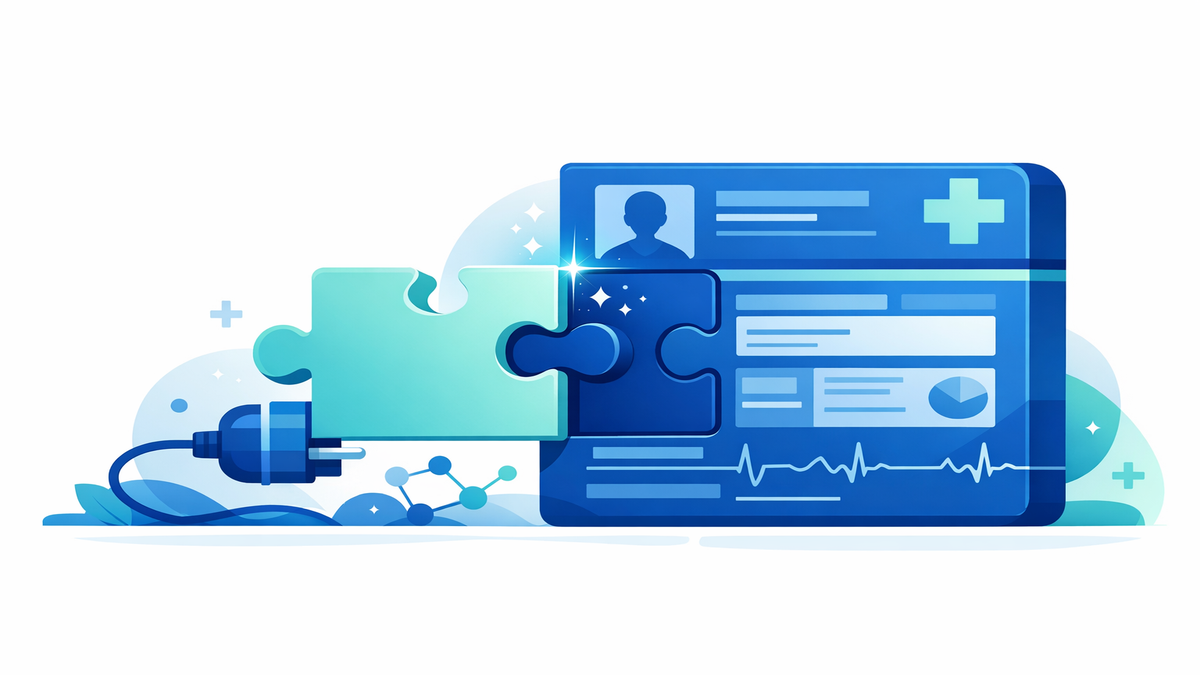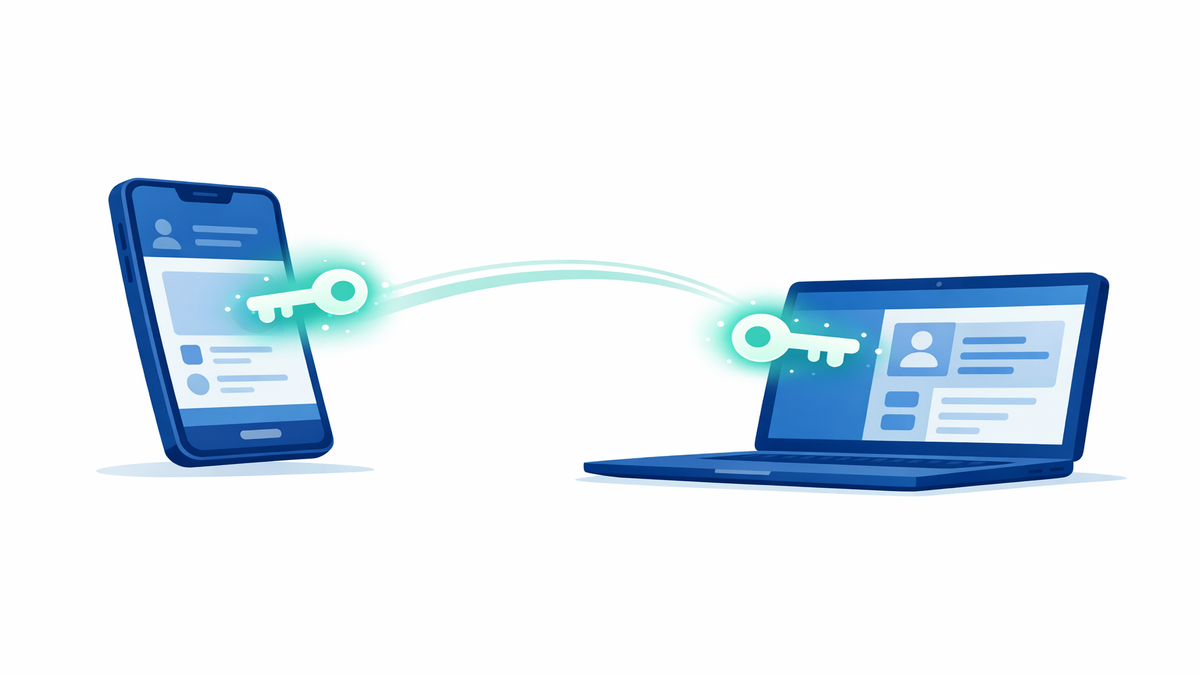
Many people now check test results, message their care team, and review visit notes from a phone or laptop. Behind the scenes, that convenience often depends on three connected tools: a patient portal, an API connection, and a mobile app that gets your permission to read certain health information. If those terms sound technical, the basic idea is simple: your health system stores your records, and approved apps can request limited access so you can see useful information in one place. The goal is to make your care easier to manage without giving apps a free pass to everything in your chart.
Understanding how this works can help you make better choices about privacy and security. When you know what an app is asking for, why it needs access, and how to turn that access off later, you stay more in control of your information. This article explains the basics in plain language, including what OAuth means, how app connections are set up, and what you can do to protect your data while still getting the convenience of syncing.
What patient portals, APIs, and apps each do
A patient portal is the secure website or app offered by your doctor, hospital, or health system. It usually lets you log in to see parts of your medical record, such as medications, allergies, upcoming appointments, lab results, and messages from your care team. The portal is managed by the healthcare organization that already has your chart. In other words, the portal is one official doorway into your health information.
An API, short for application programming interface, is a controlled way for one computer system to share information with another. Think of it like a waiter taking an order from your table to the kitchen and bringing back only what was requested. An API does not mean an app can roam freely through every part of your record. Instead, it allows specific pieces of information to be shared in a structured, approved way.
A mobile health app may use that API to pull in data after you say yes. For example, a medication reminder app might read your current medication list, or a wellness app might import recent lab values or immunizations. These apps do not usually store your medical record in the same place your hospital does. They are separate tools that can connect to your portal account when you allow it.
- Patient portal: The official account from your healthcare provider.
- API: The secure connection method that passes approved data.
- Mobile app: The tool on your phone or tablet that uses the connection.
- Your permission: The step that decides whether the connection happens at all.
How permission works: the basics of OAuth
OAuth is the system many apps use to ask for access without making you hand over your portal password to the app itself. That matters because giving your password directly to a third-party app would be risky. With OAuth, you are usually sent to your healthcare provider’s own login page. You sign in there, not inside the outside app, and then the provider asks whether you want to allow the app to access certain information.
This process often includes a screen that lists what the app wants to read, such as medications, allergies, appointments, or test results. You may also see whether the app wants one-time access or ongoing access until you turn it off. If you agree, the app receives a kind of digital permission slip, sometimes called a token, instead of your actual password. That token tells the provider’s system what the app is allowed to do and helps limit access to only the approved data.
This is one reason people say apps can access “only what is needed,” at least when the system is working as designed. The provider’s system can restrict the app to certain categories of information rather than your entire chart. Still, the exact amount of information shared depends on the app, the health system, and the permissions you approve. That is why it is worth slowing down and reading the access screen before tapping “Allow.”
- Look for a list of exactly what the app wants to read.
- Check whether access continues in the background after setup.
- Prefer logging in through your provider’s own sign-in page.
- Avoid apps that ask you to type your portal password directly into the app if a secure connection option is available.
What information gets shared, and what usually does not
When an app connects to your chart, it usually does not receive every document and every detail automatically. Many connections focus on common data types, such as your name, date of birth, medication list, allergies, conditions, recent test results, immunizations, and visit summaries. Some apps may also read appointment details or insurance-related information if that is part of the service they offer. The point is to support a specific function, not to copy your entire medical history without limits.
That said, “limited” does not always mean “tiny.” A medication list, problem list, and test history can still reveal a lot about your health. For example, an app that reads your lab results may learn about diabetes, pregnancy, kidney disease, or other sensitive issues depending on what is in your chart. Even if an app asks for only a few categories of data, those categories may still be personal and important. It helps to ask yourself whether the app truly needs that information to do its job.
Different health systems may support different levels of sharing. One portal may allow an app to read allergies and medications, while another may also include notes, care plans, or billing details. Some apps can only read information, while others may eventually write data back, such as home blood pressure readings or glucose logs. If an app can send information into your chart, make sure you understand what will be shared with your care team and how often.
- Commonly shared items include medications, allergies, diagnoses, labs, and immunizations.
- Some apps get read-only access, meaning they can view but not change your record.
- Other apps may send data back, such as readings from home devices.
- Always match the app’s request to its purpose: if the request feels too broad, skip it.
How to choose apps wisely and protect your privacy
Before connecting any app to your portal, take a minute to check who made it and how it handles data. A trustworthy app should clearly explain what information it collects, why it collects it, whether it sells or shares data, and how you can delete your account. Look for a privacy policy written in plain language, not just legal wording that is hard to understand. If you cannot tell what will happen to your data, that is a sign to be cautious.
It is also smart to review the app’s reputation. Read recent reviews, look for updates within the last year, and see whether the developer is a known health company, hospital partner, or established technology company. Some apps are designed mainly to help patients, while others may use health information for advertising, research, or product development. Those uses may be allowed under the app’s own rules even if they are different from the privacy rules your doctor follows.
On your own devices, basic security steps make a big difference. Use a strong password for your portal, turn on two-factor authentication if offered, and keep your phone’s operating system updated. If your phone is lost or stolen, screen locks and biometric login, such as fingerprint or face unlock, can help protect your information. Also be careful when using public Wi-Fi, especially when logging in to health-related accounts.
- Read the privacy policy before connecting the app.
- Check whether the app shares data with advertisers or outside partners.
- Use strong passwords and two-factor authentication.
- Update your phone and apps regularly for security fixes.
- Delete apps you no longer use, especially ones linked to your health accounts.
Managing, reviewing, and turning off app access
One of the most useful habits is checking which apps currently have access to your portal account. Many patient portals have a settings or security section that lists connected applications. There, you may be able to see the app name, when access was granted, and what type of information it can read. If something looks unfamiliar, or if you stopped using an app months ago, you can often remove its access with a few taps.
Revoking access is important because some apps continue to sync in the background until you turn them off. Deleting the app from your phone does not always cancel the connection on the portal side. In many cases, you need to sign in to the portal and remove the app from your connected apps list. After that, the app should no longer be able to pull new information, although it may still keep data it already collected based on its own privacy policy.
If you are helping a parent, spouse, or child manage care, ask whether proxy access is involved. Proxy access means one person is allowed to view another person’s portal account under approved rules. App syncing can become more confusing in those situations, especially if one phone is connected to more than one patient’s records. Label accounts clearly, review permissions often, and make sure everyone understands whose information is being shared with which app.
The big takeaway is that syncing is meant to give you convenience with control. Patient portals store the record, APIs create the pathway, and OAuth lets you approve access without handing over your password. When you pause to review permissions, choose apps carefully, and clean up old connections, you can enjoy the benefits of mobile access while limiting unnecessary sharing. A few minutes of review now can help you stay organized, informed, and more confident about how your health information moves.
- Check your portal settings for connected apps every few months.
- Remove access for apps you no longer use.
- Remember that deleting an app may not cancel portal access by itself.
- Review proxy and family account connections carefully.
- When in doubt, contact your provider’s portal support team for help finding app permissions.